
Semester Setup
Turn your schedule and syllabi into a class calendar, a combined syllabus and a grade calculator with ChatGPT.
Get your files ready
You'll attach these directly in ChatGPT. On a computer, keep them together in Downloads; on a phone, use Photos and Files.
- 1Your full class schedule
In CU Navigate, open your courses for the semester and choose List View. Keep the course names, sections, days, times and locations visible.
Open CU Navigate ↗See an example & save a schedule screenshot
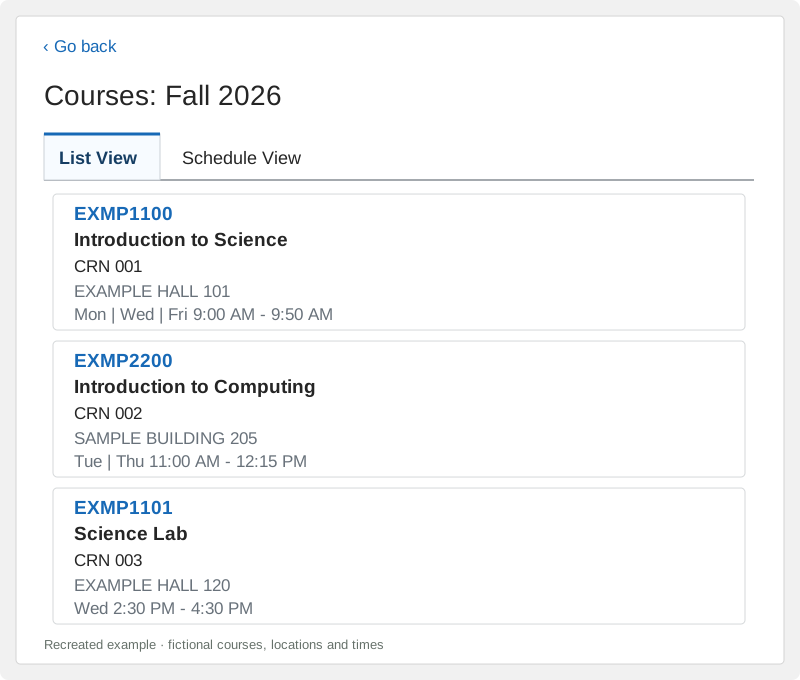
Use List View like this. These course details are fictional. Include all your classes, including labs and any extra meeting times. Take more than one screenshot if you need to scroll. Keep a little overlap so no class is missed. Leave names, IDs and unrelated events outside the screenshot.
Windows
Press Windows + Shift + S and drag around the schedule. Open the screenshot preview in Snipping Tool, choose Save as, then save to Downloads as Schedule-1.png. Repeat as needed.
If the preview disappears, open Snipping Tool from Start. Newer versions may already have saved a copy in Pictures → Screenshots.
Microsoft's screenshot guide ↗Mac
Press Shift + Command + 4 and drag around the schedule. The screenshot normally saves to your Desktop. Move it to Downloads and name it Schedule-1.png.
Apple's screenshot guide ↗iPhone or Android
Use your phone's screenshot buttons. On most newer iPhones, press Side + Volume Up; on most Android phones, press Power + Volume Down. Keep the screenshot in Photos / Gallery and choose it there when attaching files in ChatGPT.
Scroll and take another screenshot for the rest of your classes.
- 2The syllabi you have
Usually in Canvas: open each course and look in Syllabus, Modules or Files. Download the syllabus PDF for each class.
Open Clemson Canvas ↗Missing a syllabus? Continue with what you have. That course stays in your calendar.
See where to find & download a syllabus
- Open a course in Canvas. Look for Syllabus, or a syllabus file in Modules or Files. Each instructor organizes their course differently.
- Open the syllabus file and choose its Download link or the PDF viewer's down-arrow button. Save the complete PDF to Downloads (Files on a phone).
- Repeat for the other courses. Keep the course name in each filename, such as EXMP1100-Syllabus.pdf.
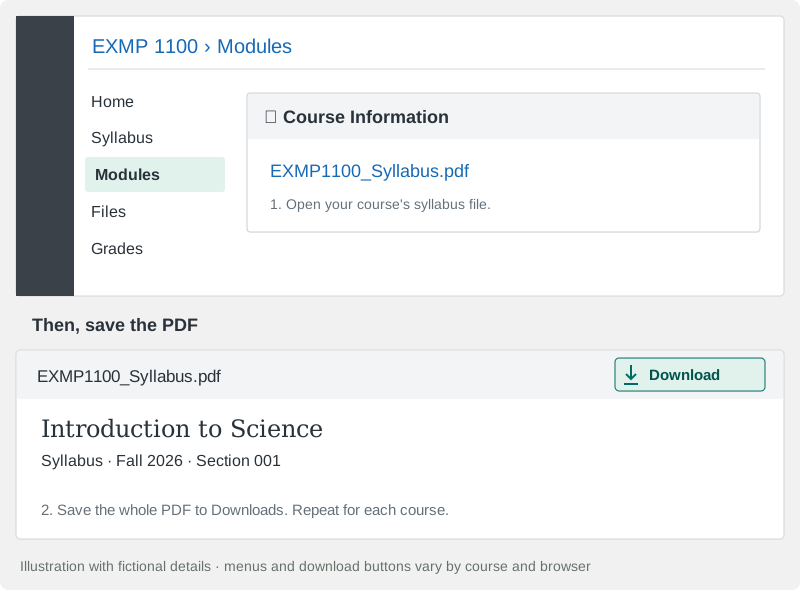
Illustration with fictional details. Your course menu and PDF download button may look different. Syllabus shown as a web page? On a computer, use Print → Save as PDF. Include every page and check the file opens. You can also attach announcements that change a date or grading rule.
- 3Your original Excel templates
Download the templates and full filling instructions together. The original fonts, spacing and white layouts are preserved.
Download templates & instructions (.zip)Open the ZIP and extract its files. Attach the files inside it in ChatGPT; you don't need to fill anything in first.
Inside: the Combined Syllabus template, Grade Calculator template and Semester_Setup_Instructions.txt. Attach all three.
Get the files individually, or see how to open the ZIP
Windows: right-click the ZIP → Extract All. Mac: double-click it. iPhone: tap it in Files. Android: open it in Files and choose Extract. Then attach the extracted files, not just the ZIP.
Combined Syllabus template (.xlsx)
Grade Calculator template (.xlsx)
Full filling instructions (.txt)
Only making a calendar? Choose Calendar above. You only need your schedule.
Need ChatGPT access?
Follow Clemson's ChatGPT Edu instructions. Sign in in your browser; no app download is needed.
Use an account with file uploads and file creation available. Tool availability and limits can vary.
Too many files, or a scanned PDF?
If ChatGPT limits attachments, send them in batches in the same chat. First say “More files are coming; wait until I say All files attached.” Send the copied request with the final batch. If a PDF is unreadable, attach clear screenshots of the affected pages.
Let ChatGPT make your files
Copy the short request, open ChatGPT, then attach your files and send. The instructions file contains the full filling rules for your original templates.
- Click Copy request below. Wait for “Request copied”.
- Click Open ChatGPT, then paste into a new chat.
- Attach your schedule, the syllabi you have, both original templates and Semester_Setup_Instructions.txt, then send everything in that message.
Forgot a required file? ChatGPT should name what it needs, then continue as soon as you attach it. When the needed files are already there, it should start making your downloads immediately.
View or copy the request yourself
Select the request, then press Ctrl+C on Windows or Command+C on Mac. On a phone, press and hold, choose Select All, then Copy.
After copying, open ChatGPT ↗The copied message starts the task; the attached instructions supply the complete filling rules. Keep the request visible as message text. If it appears only as a “Pasted text” attachment, add: Create my files now using the attached instructions.
In ChatGPT, paste with Ctrl+V / Command+V, or press and hold on a phone. Files are not attached automatically; add them before sending.
Read or copy all detailed filling instructions
The complete rules from the original setup are included in the download pack. This version also includes your selected school, semester and output choices.
If a long paste becomes a Pasted text attachment, use the normal Copy request message above as the chat message, too.
ChatGPT only described my schedule
Send the message below in the same chat. You don’t need to upload everything again. Creating the files may take a few minutes.
Download from ChatGPT
Open each file link in ChatGPT's reply and save it. There is nothing to paste back here.
Semester Calendar · .ics
On a computer, create a dedicated semester calendar in Google Calendar, then import the .ics. Check the first week, breaks and the last week. Import once; reimports can duplicate events.
Google's import instructionsDownload a fictional calendar example
Combined Syllabus · .xlsx
Open in Excel. All course cards stay side by side on one worksheet, in the original white layout. Missing details stay blank. For longer notes, select the cell and expand Excel’s formula bar; you can resize your own copy if you want.
Download the original syllabus layoutGrade Calculator · .xlsx
Open the original class tabs in Excel. Enter Earned and Out Of (for example, 81 out of 100). Leave untaken work blank; zero counts. Enter course credits on the GPA page. The GPA Calculator links those classes. Its What If Grade column lets you try a different letter grade without changing actual scores. The GPA page uses the Clemson undergraduate scale.
Download the original grade layoutWhat if something is missing?
Unknown details stay blank. ChatGPT should mention a genuine conflict once, near that item or in its reply. A course with missing grading rules can remain unfinished while your other courses and calendar are completed.
My grade says CHECK METHODS
That course needs a rule from its syllabus or Canvas gradebook: whether items count equally, by points, or by individual weights. Ask ChatGPT which category needs it, then supply that rule in the same chat. Do not choose a method just to clear the message. Your other files can still be used.
More than eight classes?
Both original workbooks have space for eight classes. ChatGPT can create an additional batch for extra classes. Each GPA page covers only its own batch. The calendar can still include every class.
A file is missing or needs a correction
Tell ChatGPT the specific problem in the same chat. Ask it to replace only the affected file. If it cannot create files, use an account/session where file creation is available and reattach the named inputs.